Enterprise Control and Management Dashboard
The Enterprise management menu allows members, shareholders, and administrators to control all aspects of a company, from assets and finances to team management and permissions.
Accessing the Menu (/enterprise or Mobile Phone)
The company menu can be accessed using two simple in-game methods:
- Chat Command: Type
/enterprisein the chat. - Mobile App: Open your in-game mobile phone and launch the dedicated Enterprise app.
Upon access, a selection window opens showing all companies you belong to or hold shares in (ENTERPRISES), as well as your owned businesses (YOUR BUSINESSES), where you can click either Manage or Withdraw.
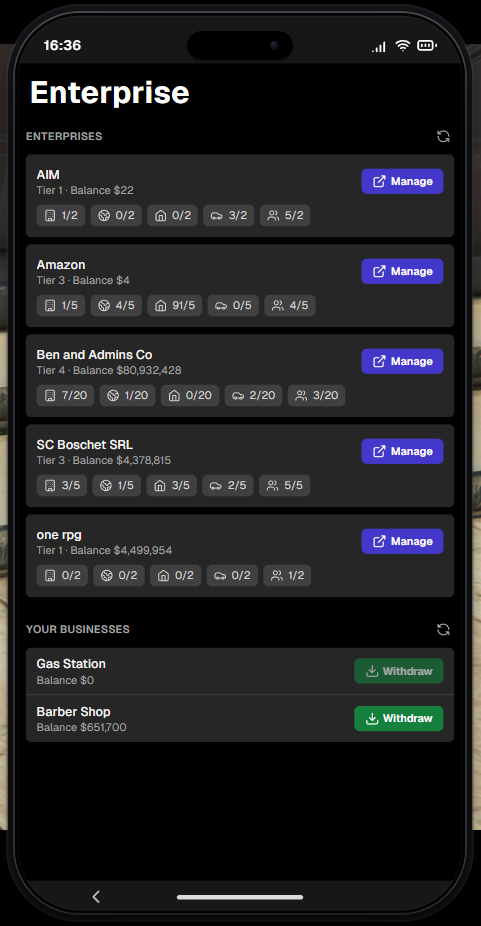
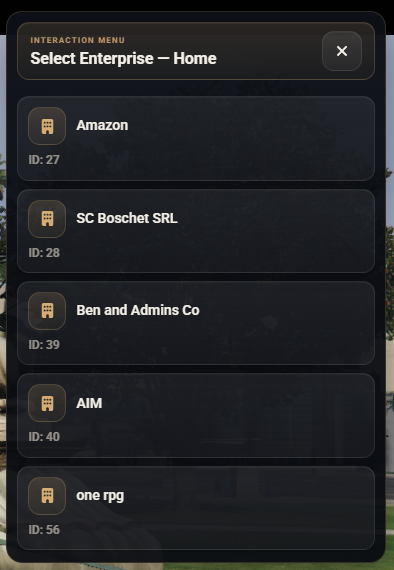
- Select the desired company from the list (displays name, Tier level, vault balance, and asset limits).
- After selection (by clicking Manage), the main Dashboard for that company opens.
1. Main Page (Home)
The Home tab provides an overview of the company's current status.
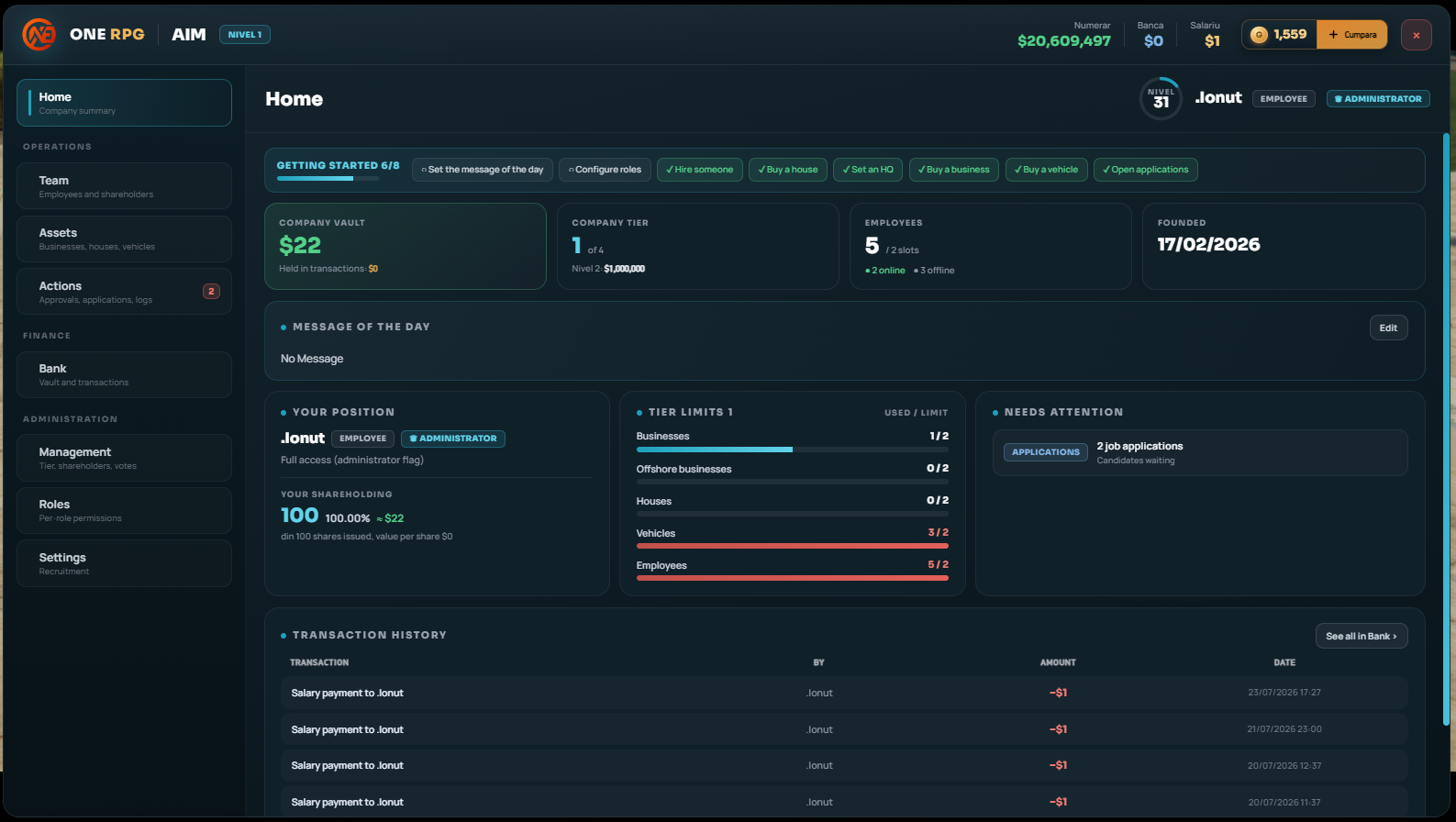
Main Elements:
- Getting Started: Step-by-step objective guide for setting up the company.
- Quick Stats: Displays the vault balance (Company Vault), current level (Company Tier), total employees (Employees), and founding date (Founded).
- Message of the Day: Information message set by management for all members.
- Your Position: Displays your rank, assigned role, and equity percentage (Your Shareholding).
- Tier Limits: Monitors active asset limits (businesses, offshore businesses, houses, vehicles, employees).
- Needs Attention: Quick warnings (ex pending job applications).
- Transaction History: Recent history of financial transactions and paid salaries.
2. Team Management (Team)
In the Team section, you can manage all members and shareholders of the company.
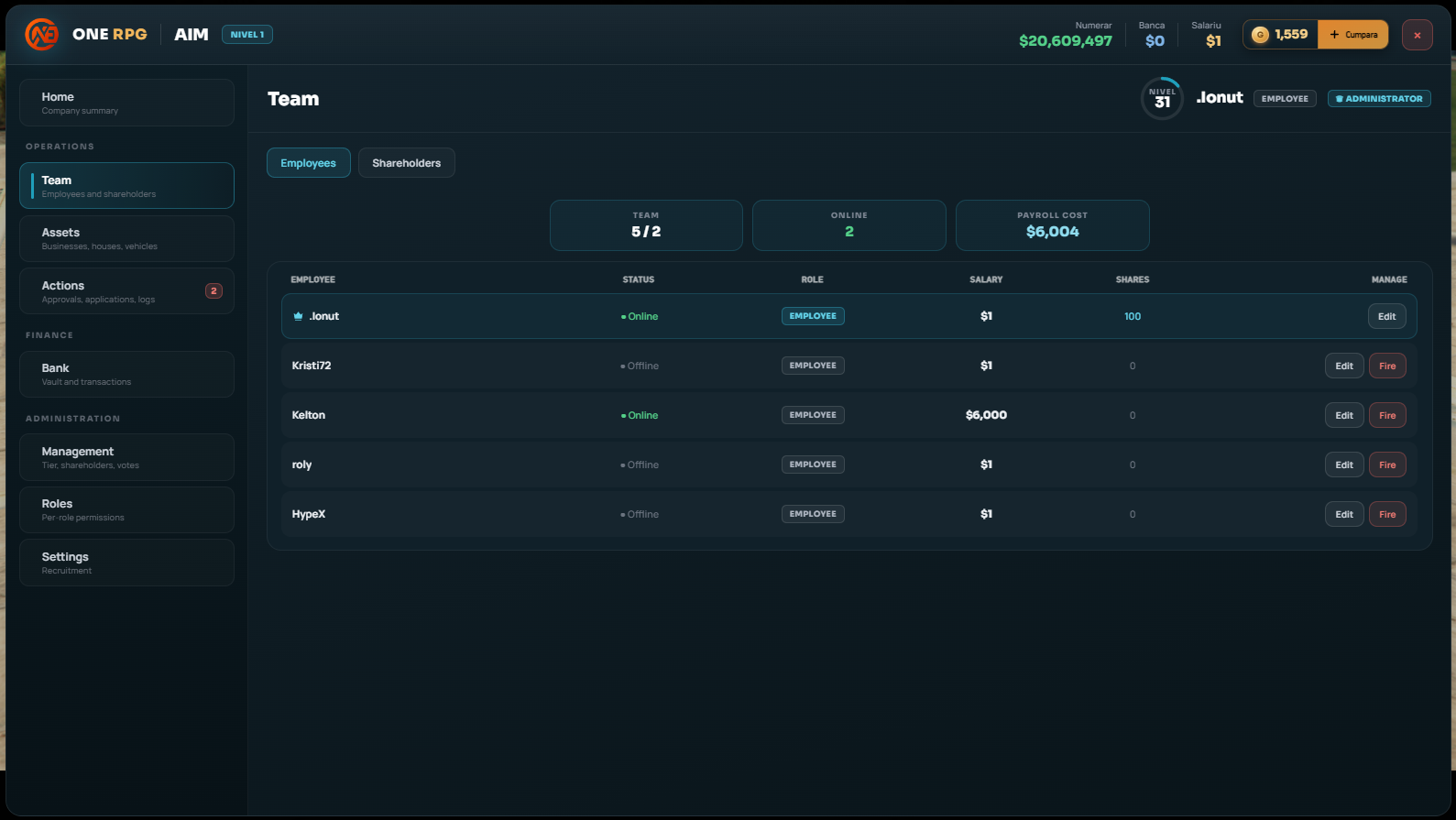
- Employees: Work for the company, receive salary on payday, and perform actions granted by their assigned role. The starting salary is automatically set to $1 and must be updated by management.
- Shareholders: Own a portion of the company, receive dividend payouts when distributed, and vote on major decisions (if holding at least 10 shares).
- Independence: Employee and shareholder statuses are completely independent: you can be an employee without owning shares or a shareholder without working there. You can be employed by multiple companies at once and hold shares in as many companies as you wish.
3. Company Assets (Assets)
The Assets tab centralizes all property owned by the firm.
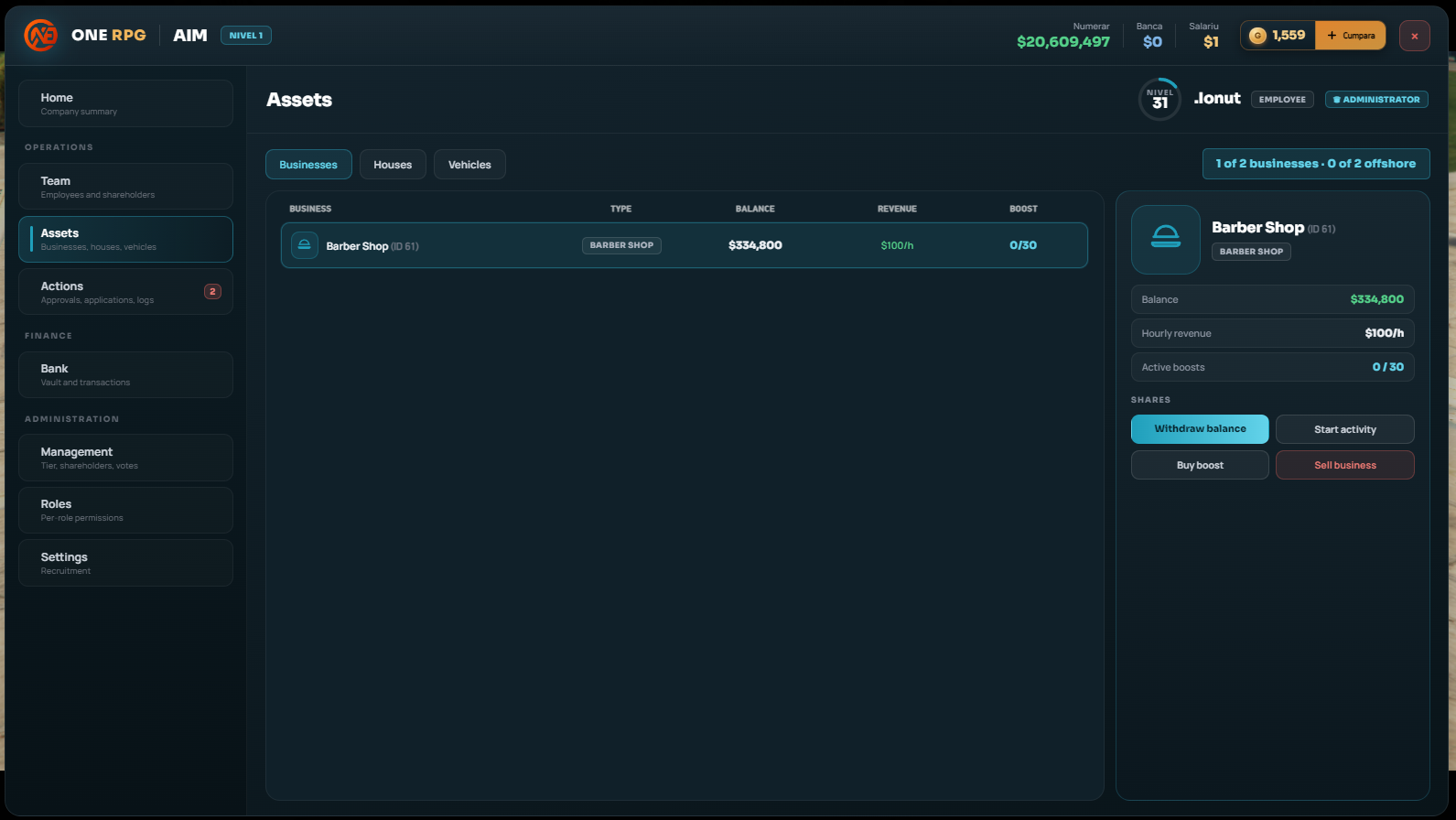
Regular Businesses (Physical, on Map)
- Regular in-game businesses owned by the company.
- Generate a guaranteed $100/hour plus whatever players spend inside them.
- Earnings accumulate in the business's local till. Collecting funds into the company vault requires an employee with permissions and incurs income tax.
Houses and Headquarters (HQ)
- The company can buy houses from its vault and put them up for rent (setting rental price and interval). Tenants can be evicted.
- Headquarters (HQ): Designated by the administrator from one of the company's owned houses. It can be relocated at any time.
HQ Requirement
As long as the company does not have a designated HQ, it cannot own any vehicles. Having an HQ is mandatory for the vehicle fleet.
Vehicles
- Purchased from the company bank at dealership prices (currently $500,000 for vans).
- Stored in a virtual garage at the HQ. Impound retrieval costs $500 from the company vault.
- A vehicle currently in use or in impound cannot be sold (it must first be returned to the garage).
4. Requests and Approvals (Actions)
The Actions section manages voting processes and recruitment requests.
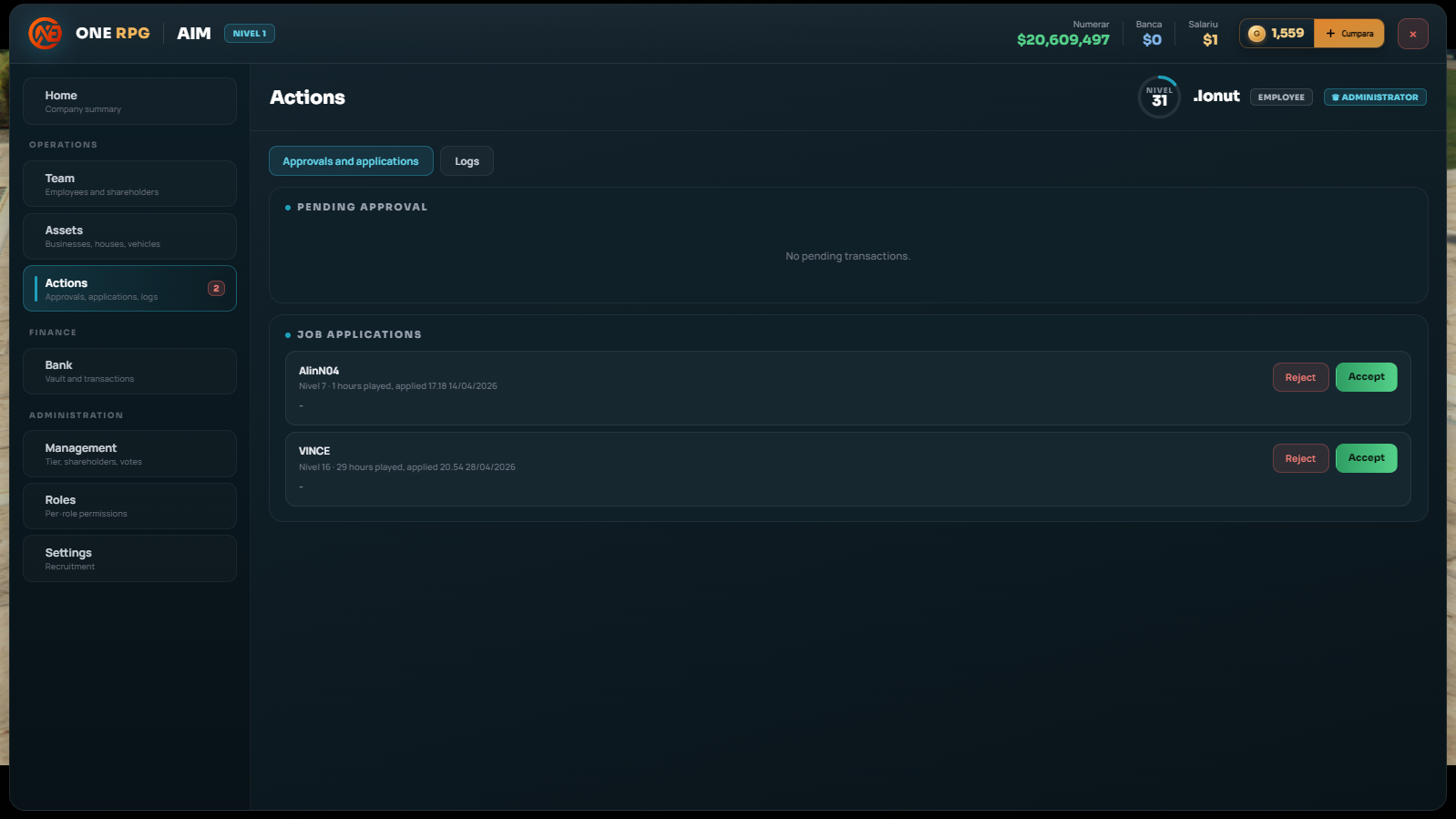
- Pending Approval: Transactions exceeding the company's set limit appear here awaiting shareholder vote.
- Job Applications: Employment applications sent by players from the Job Center (can be accepted or rejected).
- Logs: Detailed activity log tracking all performed actions.
5. Finances and Banking (Bank)
The Bank section serves as the financial hub. There are two completely distinct methods to withdraw funds from the company:
| Criterion | Direct Withdrawal | Dividend Payout |
|---|---|---|
| Who can execute | Anyone with "Withdraw vault money" permission | Administrator (CEO) only |
| Who receives money | Only the individual making the withdrawal | All company shareholders |
| Distribution | Entire sum goes to a single person | Proportional to shareholding (ex 40% shares = 40% of payout) |
| Who is included | Only the performing member | All shareholders (even with 1 share, even if offline) |
| Destination | Cash (or personal bank if requiring approval) | Personal bank account of each shareholder |
| Purpose | Operational expenses, one-time payments | Fair profit distribution among owners |
Transaction Limits and Approvals
Every company has a transaction threshold. Withdrawals or purchases operate under the following rules:
- Below limit: Executed immediately.
- Above limit: Sent to the Actions tab for shareholder voting (funds are locked during the process). Only shareholders with at least 10 shares can vote. Owning over 50% approves the transaction instantly.
- Expiration: Requests expire after 24 hours; if rejected or expired, funds return to the vault.
- Deposits: Deposits never require approval.
6. Company Tiers (Tier 1 - 4)
Upgrading the company Tier increases maximum limits for assets and employees. Regular and offshore businesses have separate slot allocations. Tiers must be upgraded sequentially.
| Tier | Regular Businesses | Offshore Businesses | Houses | Vehicles | Employees | Cash Upgrade Cost | Gold Price |
|---|---|---|---|---|---|---|---|
| Tier 1 | 1 | 1 | 1 | 1 | 1 | Included | - |
| Tier 2 | 3 | 3 | 3 | 3 | 3 | $10,000,000 | 300 Gold |
| Tier 3 | 5 | 5 | 5 | 5 | 5 | $15,00,000 | 500 Gold |
| Tier 4 | 20 | 20 | 20 | 20 | 20 | $50,000,000 | 1500 Gold |
Upgrade Methods:
- With Company Vault: Paid using company funds. Requires shareholder voting ("Tier Upgrade"). Funds are reserved during the vote and returned if rejected.
- With Gold: Paid using personal Gold. Does not require a vote and applies instantly. Can be purchased by any shareholder holding at least 10 shares. Gold is non-refundable.
7. Shareholder Voting System
Major decisions are voted on in the Management tab:
- Voting Eligibility: Only shareholders holding at least 10 shares (10%) can initiate or vote.
- Vote Weight: Votes are weighted based on share count, not head count. Share weights are frozen at the moment a vote is initiated.
- Duration: Open for up to 7 days (or until all eligible voters vote). While a vote is pending, online eligible voters receive reminders every 5 minutes.
- Outcome: The option backed by the majority of shares passes. Tiers or ties result in rejection (no quorum).
- Limits: Maximum 1 active vote per type (maximum 3 in parallel: Leadership Change, Tier Upgrade, Transaction Limit). Keeps a history of the last 20 votes.
8. Roles and Permissions (Roles)
Administrators can create up to 20 custom roles (names between 3 and 20 characters). Default roles (Employee, Manager, CEO) cannot be deleted.
- Access: Access company management interfaces.
- Finances: Vault deposits, vault withdrawals, edit transaction limits, approve/reject transactions.
- Businesses: Buy, sell, collect earnings, adjust prices.
- Houses: Buy, access HQ, set rental listings, set price/interval, collect rent, evict tenants.
- Vehicles: Buy and sell company vehicles.
- Personnel: Manage employees (roles, salaries, dismissal), view/accept/reject applications, set application criteria.
- Other: Edit Message of the Day.
9. Administrator (CEO)
- Automatically possesses all permissions regardless of assigned role.
- Sole entity authorized to distribute dividends and designate the Headquarters (HQ).
- Can only be replaced through a Leadership Change vote (demoted former CEO remains in the firm as an Employee).
- Cannot leave the company if they are the sole administrator without first promoting another member.