HUD Settings System
The HUD (Heads-Up Display) system allows you to completely customize your on-screen interface, character status indicators, vehicle speedometers, and quick actions to perfectly match your gameplay style.
How to Access the HUD Menu?
You can open the customization panel at any time by typing the following command in the chat:
- Quick Command: Type [/hud] in the game chat.
Menu Tabs & Customization Options
The navigation bar at the top of the panel is divided into 6 distinct categories. Below you will find the detailed breakdown of each tab based on the graphical interface.
1. General HUD & Status Customization (Tab 1)
This tab handles the visual theme, visibility rules, and the toggling of your character's primary status indicators.
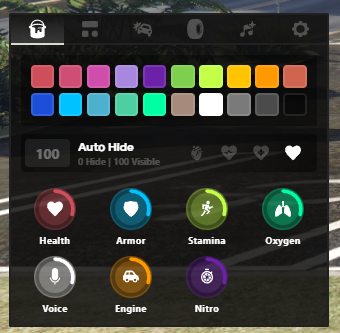
- Color Palette: Select from the 20 predefined colors at the top to change the accent color of active indicators.
- Auto Hide Settings: Configure the dynamic visibility threshold (e.g., hiding elements when a status is at 100% or adjusting opacity/display duration).
- Monitored Status Indicators:
- Health: Displays your character's current health bar.
- Armor: Displays the protection level of your active body armor.
- Stamina: Monitors your running and physical exertion limits.
- Oxygen: Appears when swimming underwater to prevent drowning.
- Voice: Visualizes your voice chat activity and range.
- Engine: Displays the health status of your vehicle's engine.
- Nitro (NOS): Monitors your available nitrous oxide capacity.
2. Player HUD Styles (Tab 2)
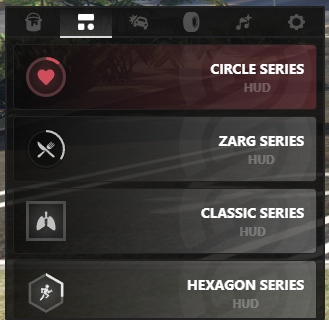
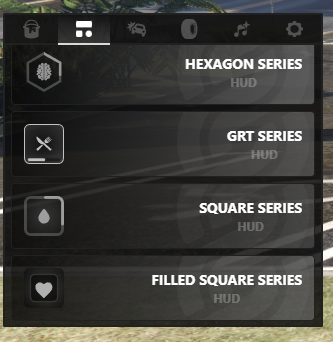
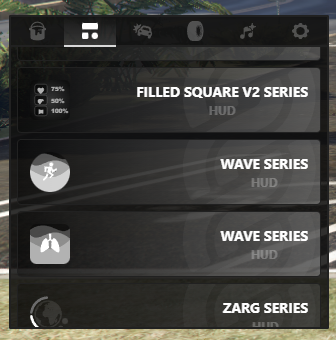
Choose the shape and layout of how your status indicators are arranged on the screen. You can select from a variety of unique geometric styles:
| Style Name | Interface Appearance | Style Name | Interface Appearance |
|---|---|---|---|
| CIRCLE SERIES | Circular ring-shaped progress bars. | GRT SERIES | Modern, thin-bordered lines. |
| ZARG SERIES | Distinct radial brackets. | SQUARE SERIES | Clean design using square boxes. |
| CLASSIC SERIES | Traditional linear bar format. | FILLED SQUARE SERIES | Compact, fully solid squares. |
| HEXAGON SERIES | Elegant six-sided (hexagonal) nodes. | FILLED SQUARE V2 | Minimalist grid with percentages included. |
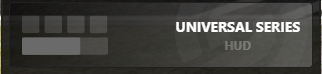
| WAVE SERIES | Dynamic fluid-wave filling effect. | UNIVERSAL SERIES | Segmented horizontal block bars. |
3. Speedometer Styles - Car HUD (Tab 3)
When behind the wheel of a vehicle, you can completely overhaul your dashboard layout. Multiple digital and analog styles are available:
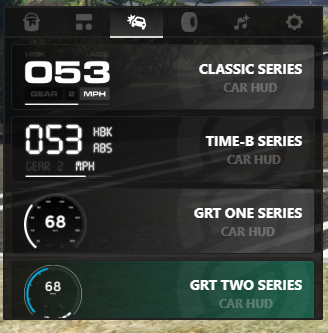
- CLASSIC SERIES: A clean digital display showing Gear, MPH/KMH, HBK, and ABS indicators.
- TIME-B SERIES: Retro arcade-console font featuring vertically stacked metrics.
- GRT ONE / TWO SERIES: A curved circular tachometer arc wrapping around the current speed value.
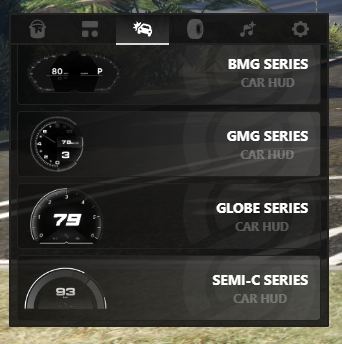
- BMG / GMG SERIES: Layouts inspired by luxury sports cars, with modern dials and gear ratios.
- GLOBE SERIES: A bold speed reading centered inside an ambient surrounding arc.
- SEMI-C SERIES: A floating, semi-circular physical-needle gauge speedometer.
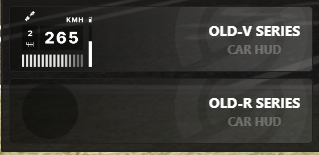
- OLD-V / OLD-R SERIES: Pixelated, old-school dashboards perfect for classic or vintage rides.
4. Vehicle Control Panel (Tab 4)
This tab features an interactive top-down schematic layout of your current vehicle, allowing you to remotely trigger functions or manage passengers.
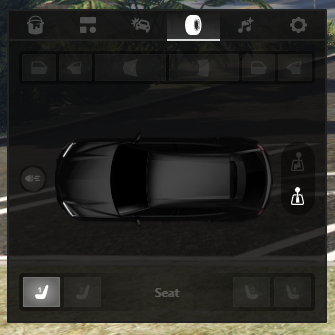
- Door & Window Controls: The top buttons let you open or close individual doors, the hood, or the trunk with a single click.
- Lighting Systems: Toggle headlights, high beams, or under-glow neon kits on the left side.
- Ignition & Lock: Quickly toggle your engine status (on/off) or lock the vehicle's transmission from the right side.
- Seat Management: Swap or assign passenger positions inside the car by selecting available seat slots (Seat 1, 2, 3, 4) at the bottom.
5. In-Car Music Player (Tab 5)
Control your audio system directly from the HUD interface while inside a vehicle.
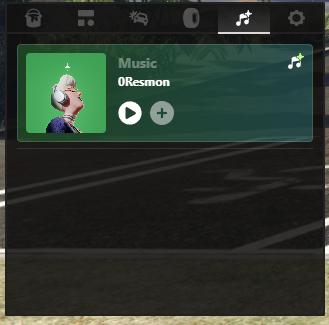
- Track Info: Displays the current music source or the name of the track currently playing.
- Media Controls: Features standard Play / Pause capabilities.
- Add Music (+): Allows you to load custom URLs or audio stream links to listen to music along with your passengers.
6. General Settings Panel (Tab 6)
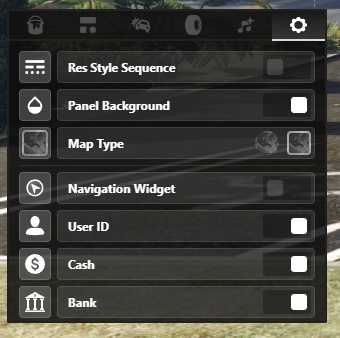
Represented by the gear icon, this tab lets you control the visibility of text elements on the screen, toggle map layouts, rearrange widgets, or restore everything to default values.
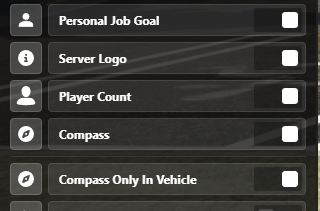
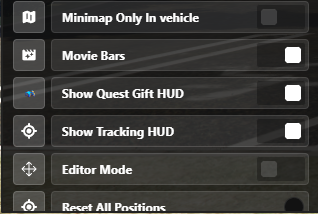
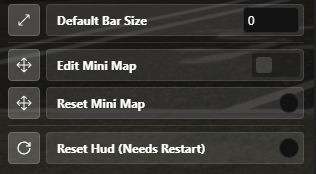
-
Display & Interface Options:
- Res Style Sequence: Changes the sequence or order of resolution style cycles.
- Panel Background: Enables or disables the opaque backing behind HUD panels.
- Map Type: Choose the visual style of your on-screen map (round or square).
- Navigation Widget: Shows or hides the dedicated widget for navigation and heading directions.
- User ID: Displays your unique player account ID directly on screen.
- Cash: Toggles the visibility of your current wallet cash balance.
- Bank: Toggles the visibility of your active bank account balance.
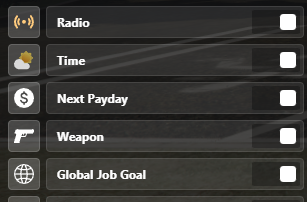
- Radio: Displays information regarding the current radio station.
- Time: Displays the clock (in-game or real-world time).
- Next Payday: Shows a countdown timer until your next server Payday arrives.
- Weapon: Displays the icon and ammo details of your currently equipped weapon.
- Global Job Goal: Tracks and displays the overall global job progression objective.
- Personal Job Goal: Tracks and displays your individual work progression objective.
- Server Logo: Shows or hides the official server community logo from the display overlay.
- Player Count: Shows the total number of connected players online in real time.
- Compass: Enables a floating cardinal compass ribbon (N, S, E, W) across your screen.
- Compass Only In Vehicle: Restricts the compass so it only reveals itself when driving.
- Minimap Only In Vehicle: Automatically hides the minimap while on foot and displays it only when sitting inside a vehicle.
- Movie Bars: Adds cinematic black letterbox bars to the top and bottom of your screen for a cinematic perspective.
- Show Quest Gift HUD: Toggles the interface overlay used for tracking active seasonal Quest gift nodes.
- Show Tracking HUD: Displays tracking UI for waypoints, specific way-finding routes, or active pursuit objectives.
-
Sizing & Position Management (Editor Mode):
- Editor Mode: Enters a free-edit state, allowing you to click, drag, and move individual HUD modules anywhere on your screen.
- Reset All Positions: Reverts the coordinates of all moved UI frames back to their original configurations.
- Default Bar Size: Calibrates the standard baseline scaling size for interface bars (default value is
0). - Edit Mini Map: Allows you to adjust the size or screen placement of your map overlay canvas.
- Reset Mini Map: Returns the minimap box sizing and screen placement coordinates back to default values.
- Reset Hud (Needs Restart): Completely wipes all custom settings changes within this panel. Note: Requires a full game reconnect / client restart to take proper effect.