Dealership (Cars)
The Dealership system allows players to view, test drive, purchase, and sell vehicles across a wide variety of categories.
There are two main types of Dealerships available on the server:
- Vanilla Dealership: Standard game dealerships where you can purchase classic GTA V vehicles.
- Custom Dealership: The main location where you can find custom/modded vehicles, featuring a modern and interactive 3D interface.
1. Vanilla Dealership
The Vanilla Dealership is located on the map and provides access to vehicles from the game's standard categories.
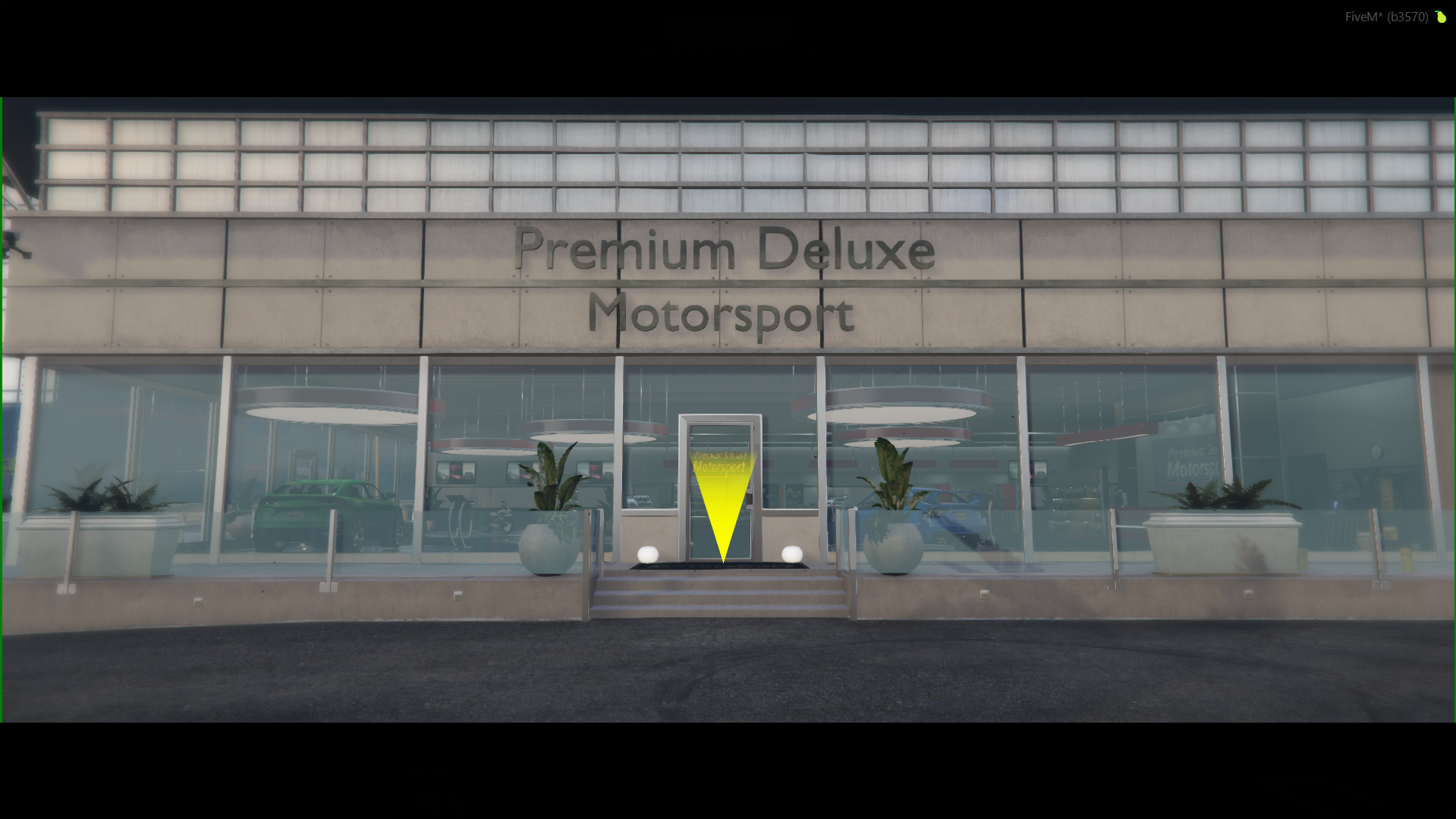
Accessing and Features (Vanilla)
- Go to the location marked on the map with the blue vehicle icon (
 ).
). - Step inside the showroom and approach the interaction point displaying:
Press E to buy a new vehicle. - Press E to open the dealership menu.
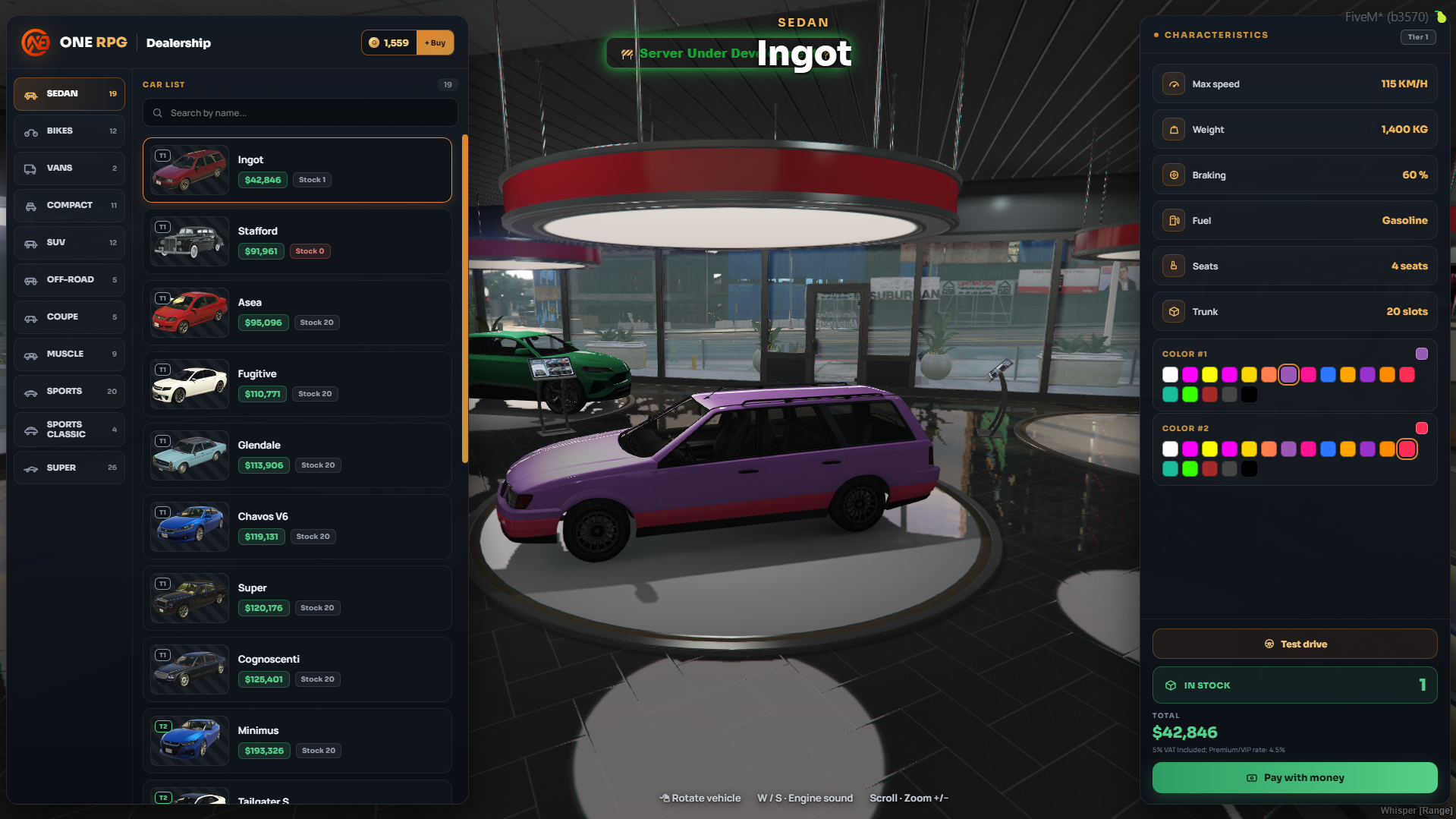
Categories and Options
- Available Categories:
SEDAN,BIKES,VANS,COMPACT,SUV,OFF-ROAD,COUPE,MUSCLE,SPORTS,SPORTS CLASSIC,SUPER. - Vehicle Information: You can view the price, top speed, weight, trunk capacity, and available stock.
- Payment: Purchases can be made using bank/cash funds (
Pay with money) or premium points (Pay with Gold).
2. Custom Dealership
Premium Deluxe Motorsport is the primary location dedicated to custom and modded vehicles, featuring an advanced 3D user interface.
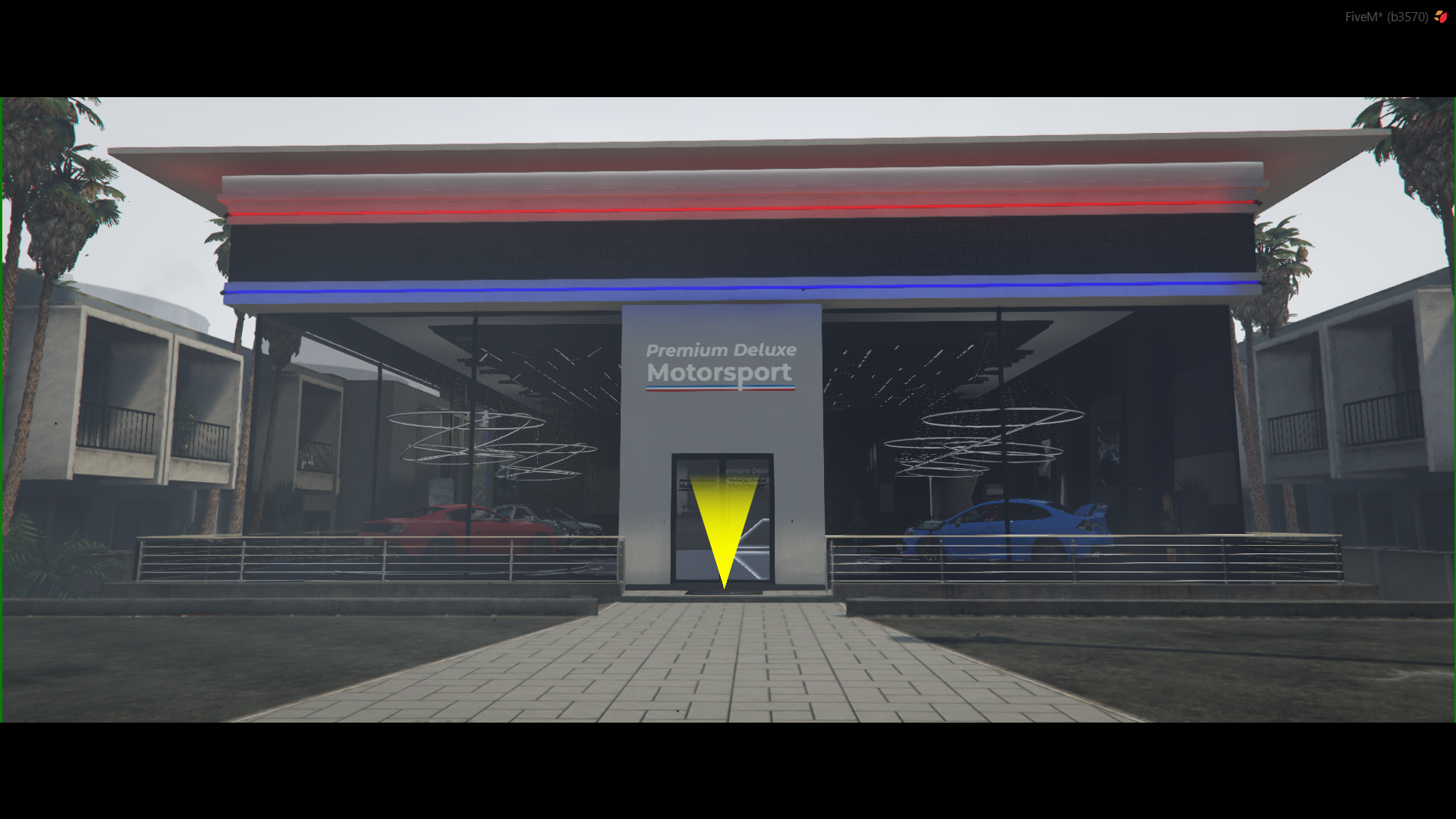
Accessing the Custom Dealership Menu
- Go to the Premium Deluxe Motorsport location marked on the map with the yellow/gold vehicle icon (
 ).
). - Enter the showroom and walk up to the counter/interaction point displaying:
Press E to buy a new vehicle. - Press E to open the car dealership interface.
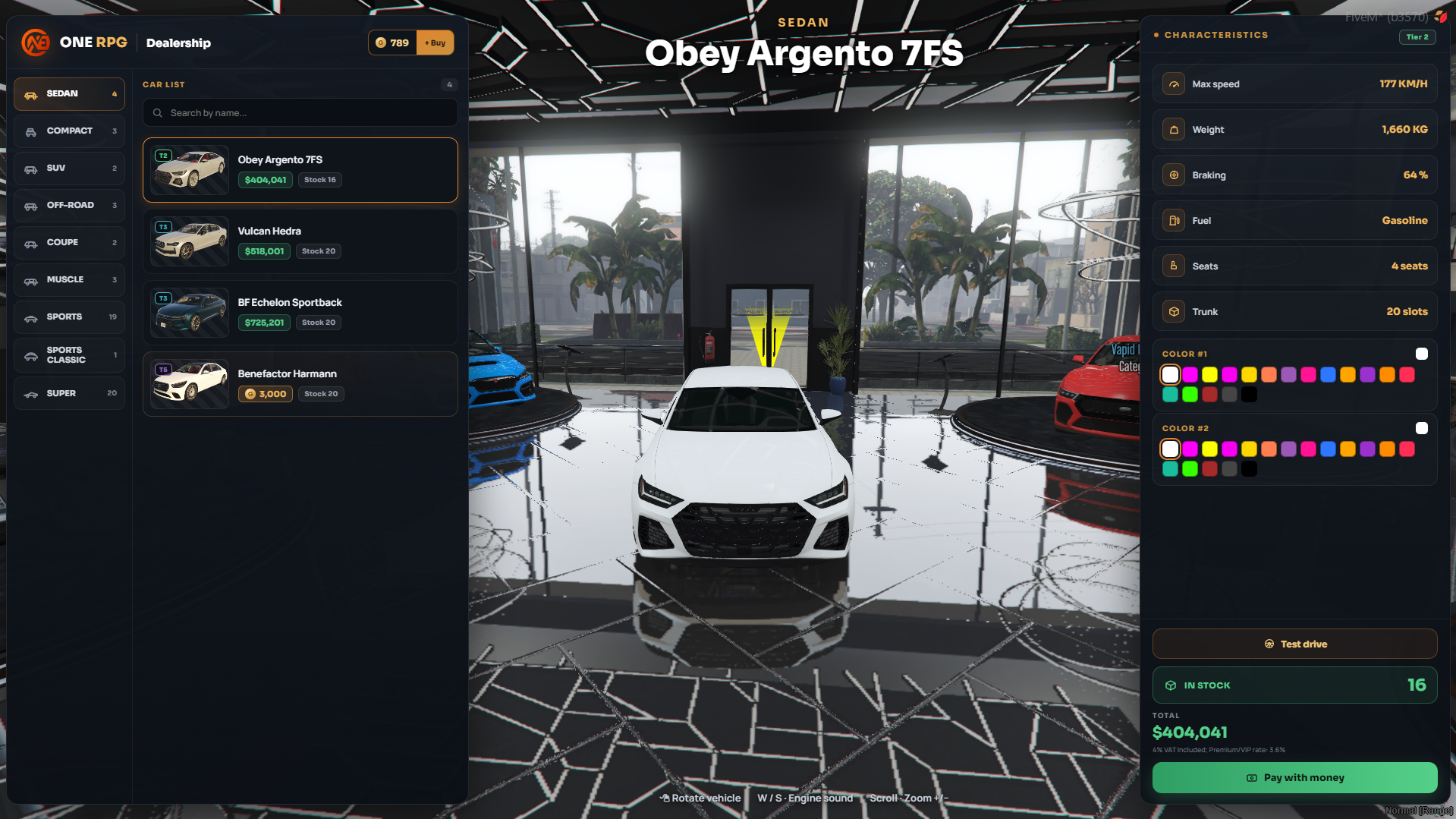
Interface and Features (Custom)
The menu is split into three main sections for easy and fast navigation:
1. Categories and Vehicle List (Left Panel)
On the left side, you can filter vehicles by class:
- Available Categories:
SEDAN,BIKES,VANS,COMPACT,SUV,OFF-ROAD,COUPE,MUSCLE,SPORTS,SPORTS CLASSIC,SUPER. - Quick Search: Use the
Search by name...box to quickly find a specific model. - Vehicle Cards: Displays the vehicle thumbnail, model name (ex Obey Argento 7FS, Vulcan Hedra, BF Echelon Sportback), exact purchase price, and current stock (Stock).
2. 3D Inspection & Interactive Controls (Center Area)
The selected vehicle's 3D model is displayed on a rotating platform in the center of the showroom. You can use the following controls to inspect it:
- Rotate Vehicle: Click and drag with the Left Mouse Button (or
Rotate vehicle) to spin the vehicle 360 degrees. - Engine Sound: Press W / S to hear the engine rev and idle.
- Zoom In / Out: Use the mouse wheel (Scroll) to zoom the camera in or out.
3. Specifications and Customization (Right Panel)
The right panel provides technical specifications and preview options:
- CHARACTERISTICS:
- Max speed: Top speed of the vehicle (ex 177 KM/H).
- Weight: Total weight (ex 1,660 KG).
- Braking: Braking efficiency percentage (ex 64%).
- Fuel: Type of fuel used (ex Gasoline).
- Seats: Number of seating positions (ex 4 seats).
- Trunk: Trunk storage capacity in slots (ex 20 slots).
- Color Customization (Preview):
- COLOR #1: Choose the primary body color from the color palette.
- COLOR #2: Choose the secondary accent color.
Purchase and Test Drive
In the lower right corner, you will find the action buttons and payment options:
- Test drive: Allows you to take the selected vehicle for a test drive before buying it.
- Test drives are limited to 60 seconds.
- Exiting the vehicle during a test drive will automatically end the session.
- Stock (IN STOCK): Shows the remaining units available on the server for that vehicle.
- Payment Methods: Depending on the selected vehicle, you can purchase it using two methods:
- Pay with money: Pay the listed price using in-game cash or bank funds.
- Pay with Gold: Certain exclusive or premium vehicles can be bought directly using Gold.
- Header Bar: In the top-right corner, you can view your current Gold balance and access the
+ Buyrecharge button.
3. Selling Vehicles (Sell Vehicle)
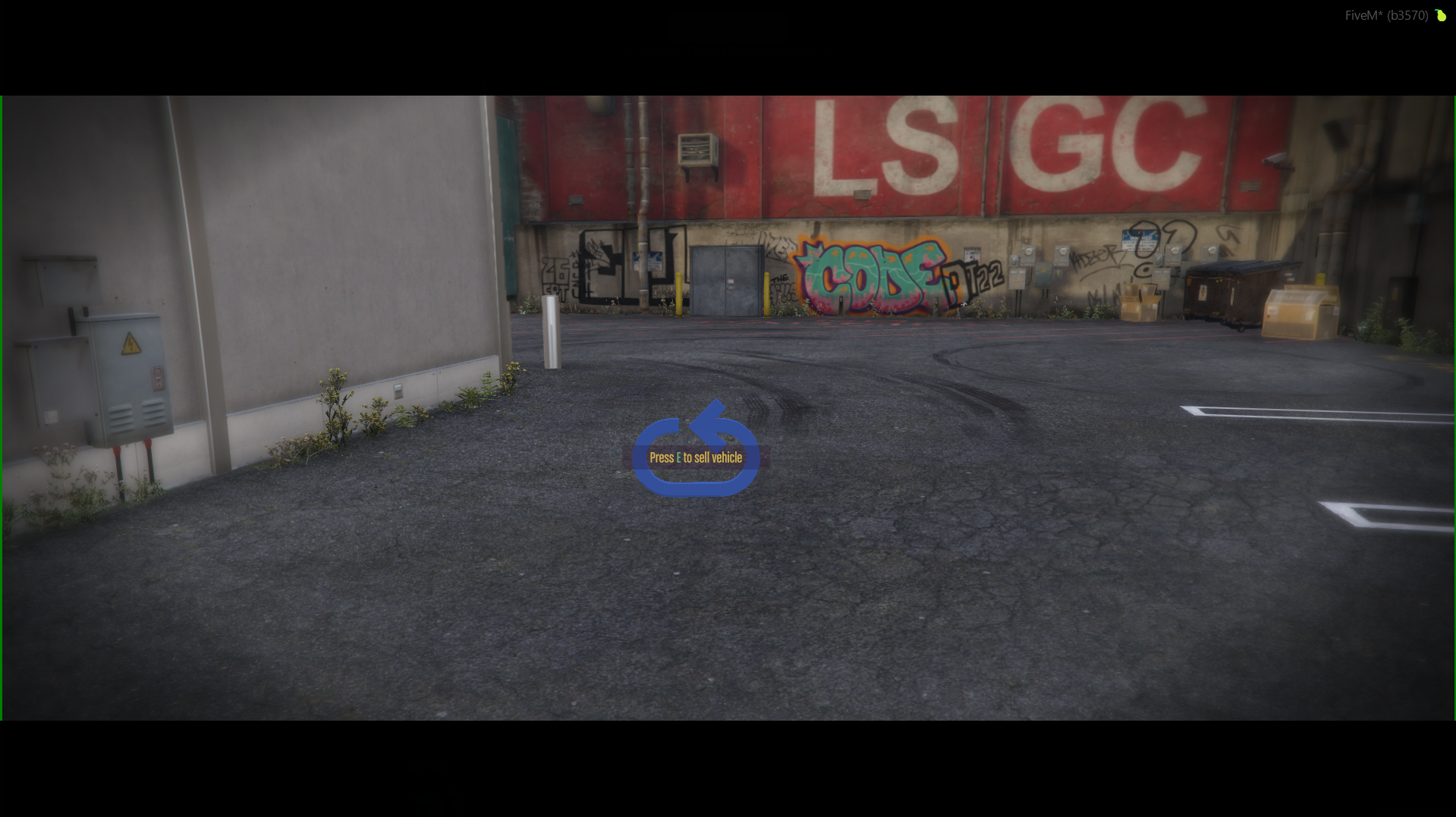
Players can sell their personal vehicles directly back to the server at the dedicated collection point located behind the Dealership building, marked on the map with a green dollar sign icon ( ).
).
Selling Procedure
- Drive the vehicle you wish to sell into the designated area behind the Dealership.
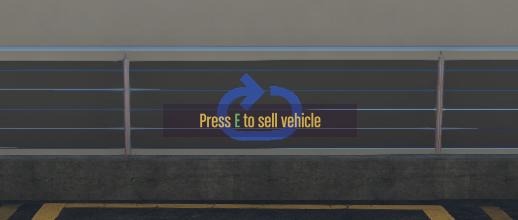
- Park inside the rotating blue marker where the prompt appears:
Press E to sell vehicle. - Press E while remaining inside the vehicle.
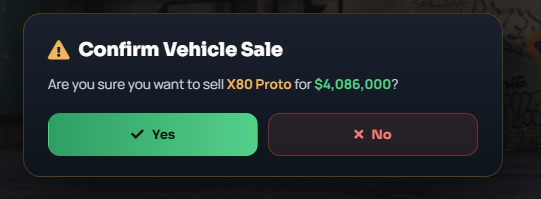
- A confirmation window (Confirm Vehicle Sale) will appear on screen stating: Are you sure you want to sell [Vehicle Name] for [$Amount]?.
- Click ✓ Yes to confirm the sale or ✕ No to cancel.
Refund Rates
The amount refunded upon selling a vehicle is calculated as a percentage of its original purchase price:
- Regular Players: Receive 40% of the vehicle's original dealership price.
- VIP Players: Receive 60% of the vehicle's original dealership price.
Selling Restrictions
You will not receive money when selling vehicles from the following categories:
- Vehicles purchased with Gold.
- Vehicles received as Quest rewards.
- Beginner vehicles received during the Tutorial.