Paintball Arena
The Paintball Arena is a special dedicated zone where players can face each other in fast-paced, secure matches, providing a perfect environment to train reflexes and precision without the risk of losing personal inventory items or weapons.
Accessing the Arena
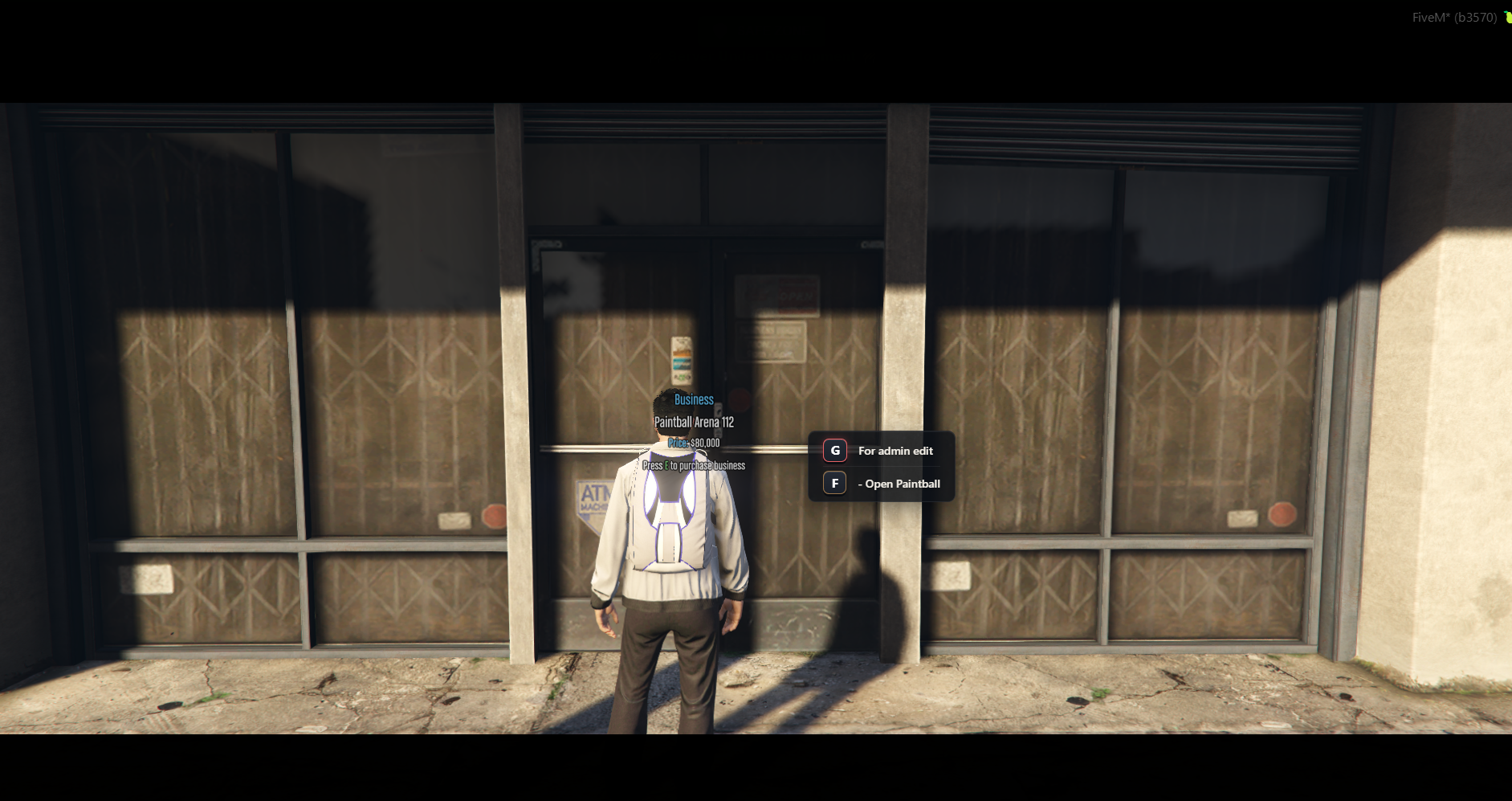
To start a custom gaming session or join an existing open match, you must travel to the arena's business destination marked on the map (image #1):
- Position your character directly in front of the building's main entrance doors.
- Press the F key to open up the arena dashboard interface (Open Paintball).
Main Interface
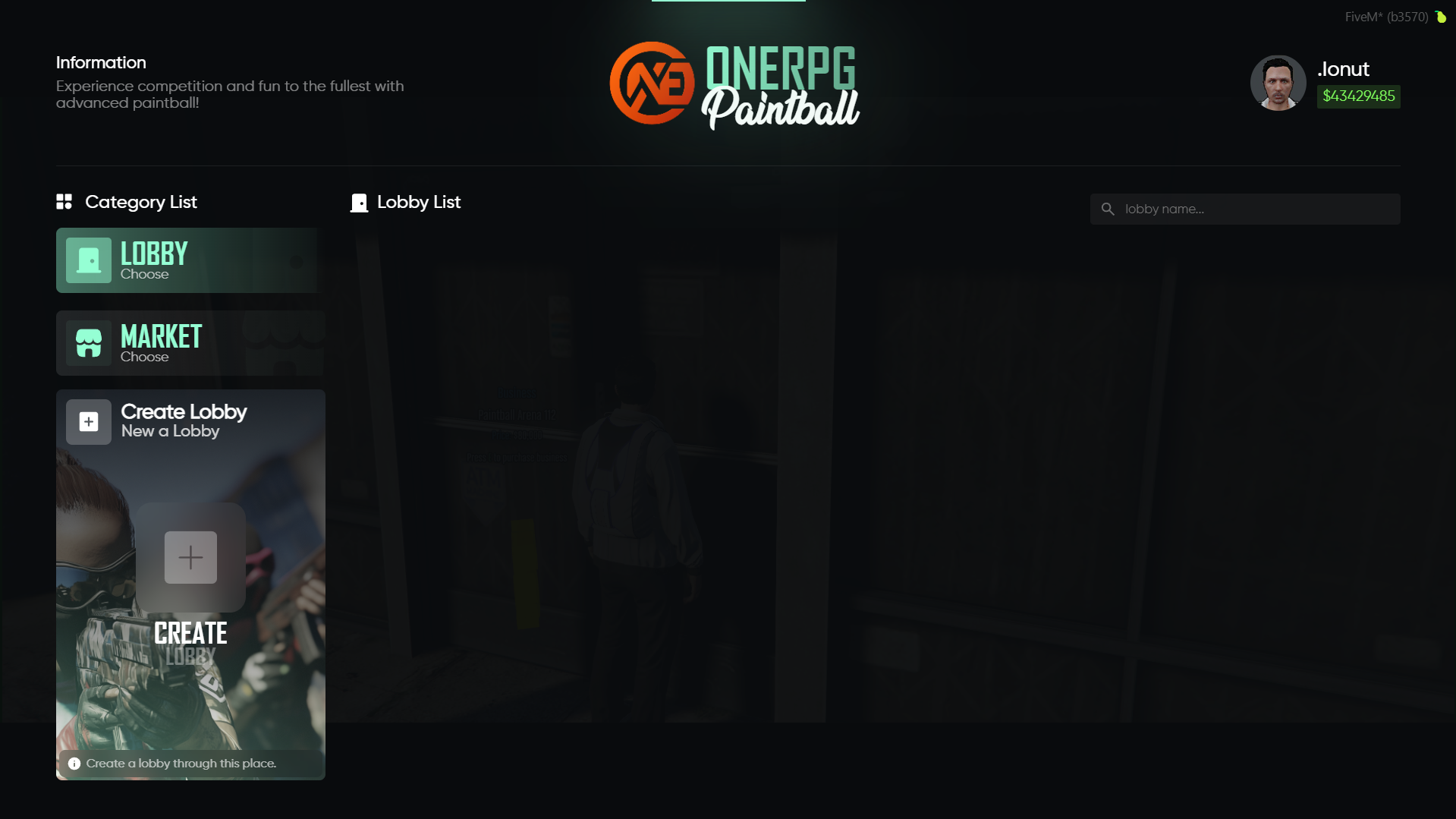
Once inside the dashboard terminal view (image #2), you can navigate across pages using the left category navigation deck:
- Lobby: Displays the active match rooms listings (Lobby List). If there are no current open match instances hosted on the server, the area displays a "No active lobby" prompt message.
- Market: Opens the specialized weapons and custom camo skins catalog available for purchases to use exclusively during matches.
- Create Lobby (Bottom Left Box Widget): A dedicated portal tile used to customize, host, and initialize a brand new game instance room.
Creating a Custom Lobby
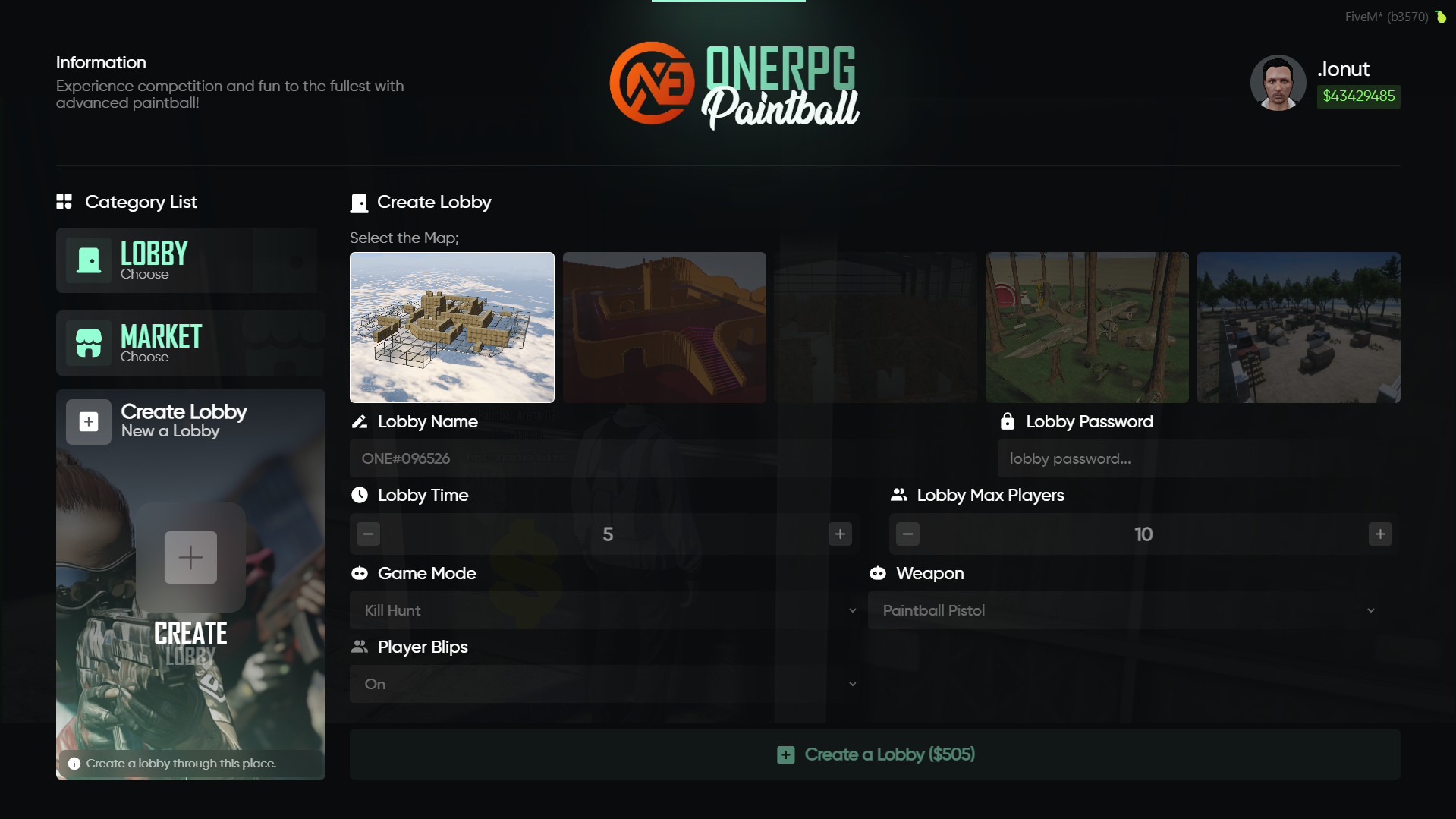
Clicking the Create Lobby box layout opens up the match rules parameters editor window (image #3):
- Map Selection: Select one of the available arena maps displayed as thumbnail pictures at the top row (ex Skyline Grid, Voxel Fortress, Hangar 89, Woodland Arena, Coastal Camp).
- Identity & Privacy: Change the automatically generated room name text profile (Lobby Name) or set up a secure protection layer (Lobby Password) to lock down private clan scrim matches.
- Rules & Constraints: Fine-tune match session duration (Lobby Time ranging from 1-30 min), capacity limits (Lobby Max Players from 2-10), game type objectives (Game Mode, ex Kill Hunt), preset designated weapons (Weapon, ex Paintball Pistol), and radar tracking elements (Player Blips On/Off).
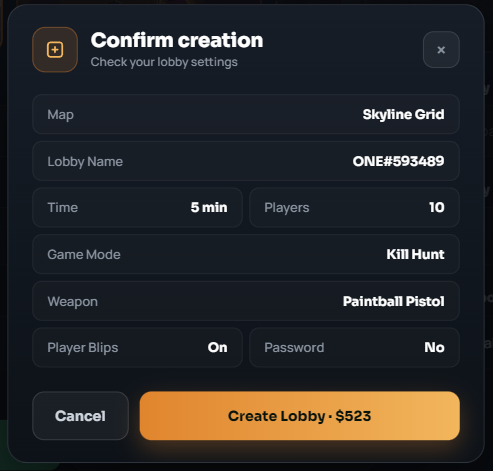
After configuring all settings, click the primary orange submit button. A Confirm creation overlay modal dialog box will review your details alongside the creation deposit cost fee (ex $523). Click Create Lobby inside the overlay to finalize and launch your instance.
Waiting Lobby and Team Distribution
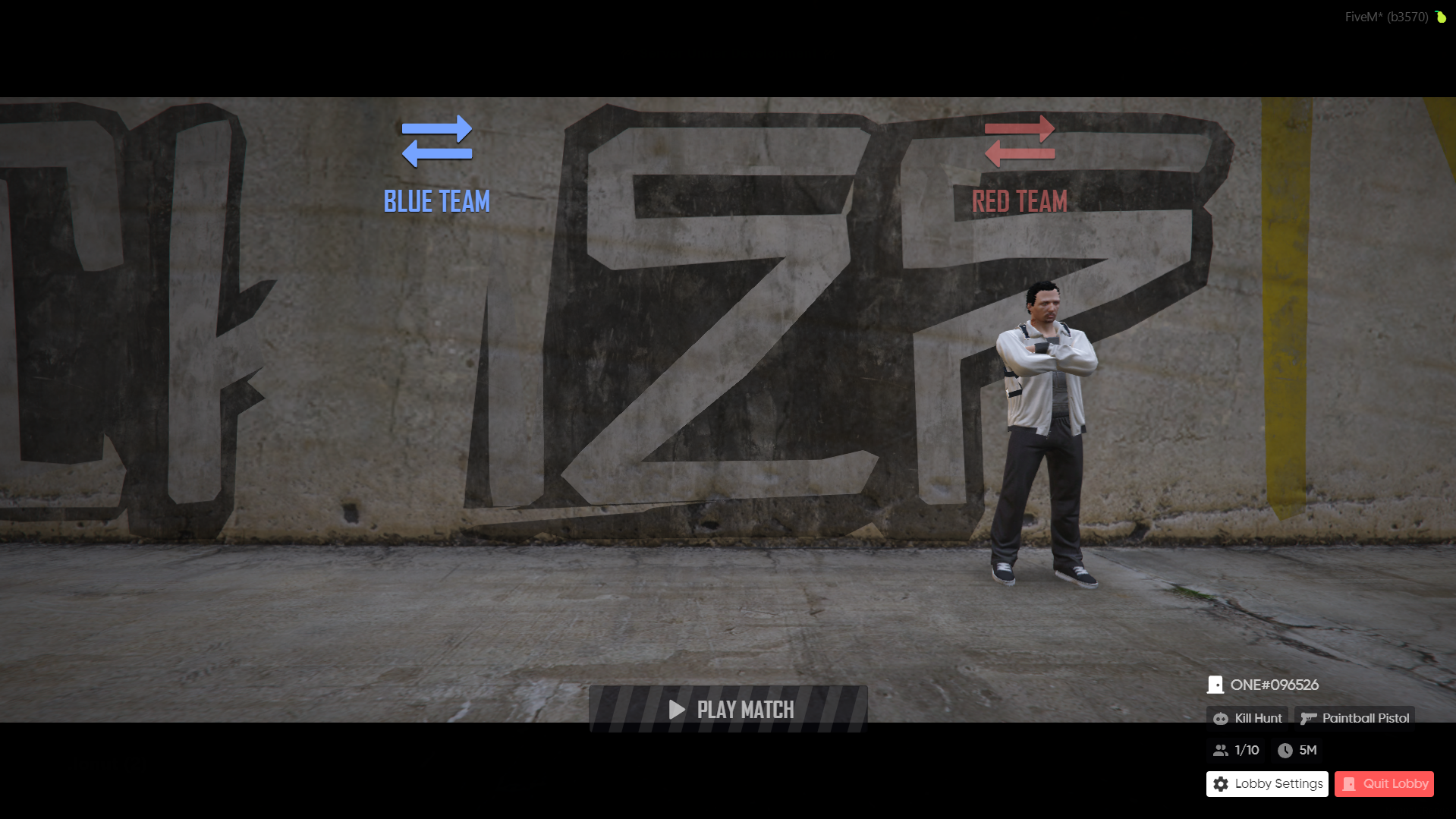
Immediately upon creating or joining a custom instance, all players are transported into a live 3D waiting deck lobby area (image #5):
- Team Distribution: Players can assign themselves or shift between factions by clicking the large BLUE TEAM (left) or RED TEAM (right) directional top deck layout bars to balance the field roster.
- Lobby Profile Widget: The lower central info board displays room attributes data detailing the room ID, hosting player nickname, map name, active weapon type, game round limit, and server accessibility status (ex PUBLIC).
- Launching the Match: Once participants have distributed and set up, the lobby host (creator) can instantly boot up the game world instance by clicking the orange
▶ PLAYprimary action button. - Auxiliary Actions: You can disconnect out of the waiting chamber at any time by selecting Quit Lobby or re-edit variables on the fly by hitting the Lobby Settings utility.
Modifying Settings in the Waiting Room
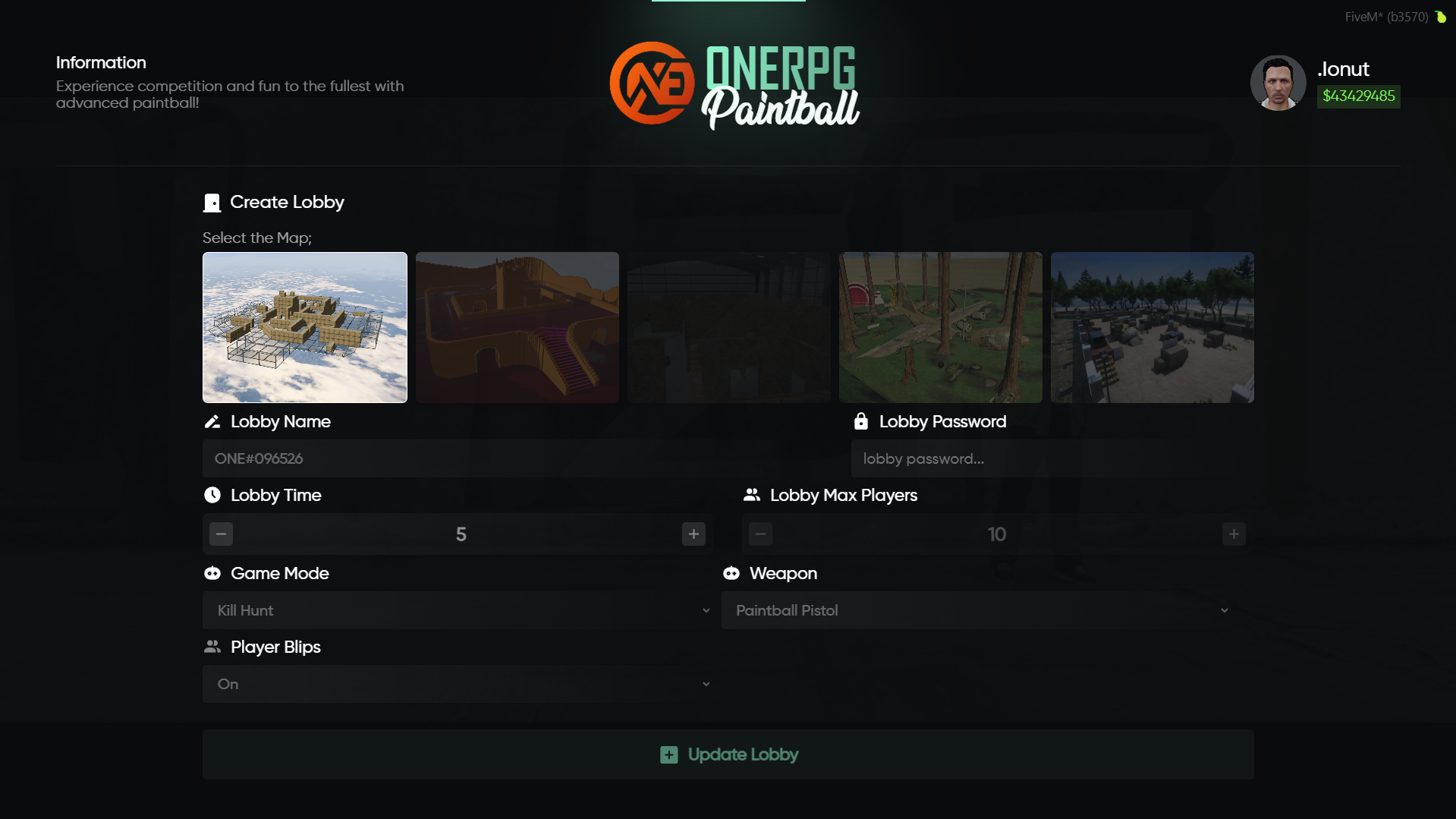
If you need to change maps or tweak game properties while users wait inside the room, clicking Lobby Settings launches the modification profile deck (image #6). Save your adjustments by clicking the Update Lobby button.
The Paintball Cosmetic Market
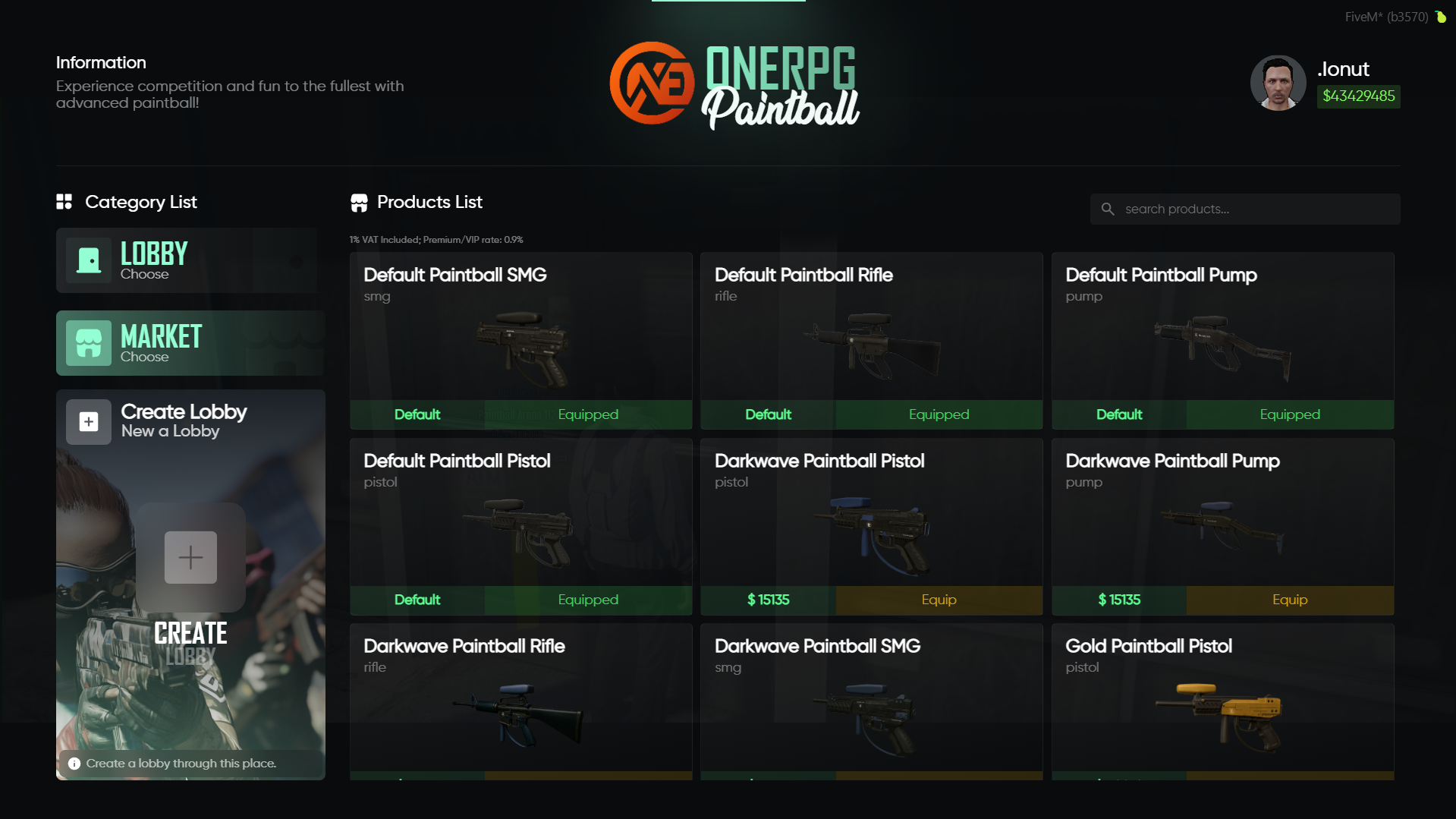
Under the Market section tab (image #7), you can personalize your aesthetic gun presentation skins used during arena play:
- Category Filtration: Quickly sort through weapon tiers using the sorting tabs at the top row: All, SMG, Rifle, Pump (Shotgun), or Pistol.
- Skins & Pricing: Each standard paintball model tier offers visual patterns. For example, you can use the baseline model style (Default - equipped automatically for free) or unlock specialized cosmetic models like Darkwave (ex $15,675) or premium look Gold editions (ex $31,350). Displayed listing values incorporate a built-in 5% standard business VAT tax (reduced to 4.5% for active VIP/Premium profiles).