Smartphone System
Your in-game smartphone is the primary utility tool used to access most of the server's core features, ranging from communication and personal preferences to trading, advertisements, and auctions.
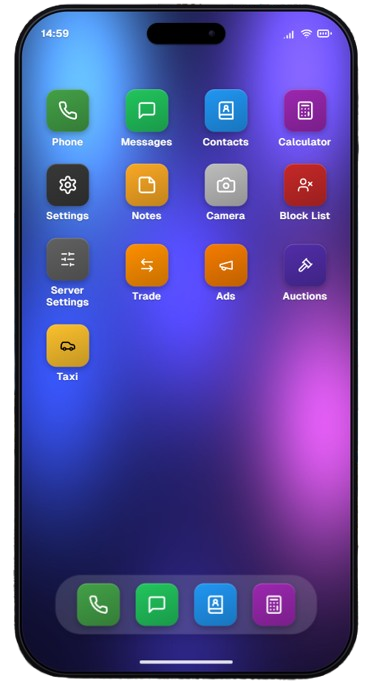
How to Open and Configure Your Phone
By default, you can pull up or hide your smartphone by pressing the P key.
If you want to remap this hotkey or if the phone doesn't open, you can change the key binding at any time by navigating through the game settings menu:
- Press the ESC key to open the main UI menu.
- Select Settings -> Open Game Settings.
- Select Key Bindings.
- Go to the FiveM section and look for the phone activation option to assign your preferred key.
Core Applications on the Home Screen
Once the phone is active, you will have access to a variety of native applications structured across your screen:
Communication & Utilities (Rows 1 & 2)
- Phone: Allows you to dial numbers and place phone calls to other players across the server.
- Messages: The hub for your text messages, as well as real-time system alerts (such as incoming Trade requests).
- Contacts: Your personal phone book where you can save friends' names and phone numbers.
- Calculator: A simple standard utility for quick calculations directly in-game.
- Settings: Opens the internal device configuration menu (detailed below).
- Notes: An app for taking quick memos, ideas, or to-do shopping lists.
- Camera: Allows you to take photos natively using your character's phone camera.
- Block List: A blacklist directory where you can block phone numbers from calling or messaging you.
Server Ecosystem Apps (Rows 3 & 4)
- Server Settings: A dedicated dashboard to toggle personal server preferences and gameplay features (detailed below).
- Trade: The utility app used to scan surrounding citizens (Nearby Players) and manage outgoing or incoming secure trade invitations.
- Ads: The global advertisement app. Here you can only place paid custom global ads.
- Auctions: The server's active live auction marketplace, where you can bid on various items and vehicles listed for sale.
- Taxi: A utility app used exclusively to request a Taxi ride to your current location.
Device Settings Configuration
Selecting the Settings icon from your home screen opens an advanced configuration dashboard for your mobile device, divided into several distinct categories:
1. "Phone" Section (Device Parameters)
- Phone Number: Displays your unique in-game phone number (ex 3308960861). Click the copy icon on the right side to instantly save it to your clipboard.
- Ringtone: Allows you to select, swap, and preview your incoming call audio tracks (ex iFruit).
- Notification: Used to customize and preview text messages or system pop-up push alerts (ex Online).
- Streamer mode: A vital configuration toggle for content creators. When enabled, it prevents media from rendering automatically (Hide images before they are shown).
- Anonymous mode: Activating this toggle masks your identity, hiding your phone number from other players during outbound calls (Hide your phone number from other players).
- Call Volume: An intuitive slider allowing you to manually balance and adjust your call voice feed volume (ranging from 0 to 100).
2. "Appearance" Section (Visual Layout)
- Language: Modifies the localization and overall text language displayed across your device's interface (ex English).
- Theme: Toggles the color layout and visual style of the application menus (ex Dark mode).
- Wallpaper: Changes the phone's home screen background image (ex Minimal).
- Frame: Customizes the physical frame or model casing design of the mobile device (ex Default).
- Zoom: Scales the user interface, text, and icons on the phone display for optimized readability (ex 90%).
3. "Life Invader" Section (Social Network Settings)
-
Notification Filters: Opens a sub-menu context card allowing you to filter incoming feed triggers from the Life Invader network:
- All Tweets: Triggers a notification alert for every global message published by other citizens.
- Only Mentions: Restricts system alerts, only triggering a notification when a user explicitly mentions your profile handle or replies to your post.
-
Notification: The distinct sound profile assigned to incoming Life Invader social network alerts (ex Online).
- Notification Volume: A standalone volume adjustment slider tailored specifically for Life Invader app notifications (ranging from 0 to 100).
4. "Marketplace" Section
- Notification: An On/Off switch to handle automated push alerts when new product listings or commercial ads are posted to the market grid (Show notification for new listings).
5. "Actions" Section (Maintenance)
- Reset Settings: Fully restores your smartphone application back to factory default configurations. Warning: initiating this option completely wipes locally cached device profiles (This will clear your locally stored data).
Server Settings Configuration
Unlike the device parameters, the Server Settings application (the grey slider icon) dictates how your character interacts with the server core and handles gameplay mechanics:
- Language: Modifies the global text output localization for server menus, systems, and pop-up administrative notifications.
- Spawn Location: Configures your character's spawning anchor point upon connecting to the server (ex last logged position, airport terminals, personal properties, or faction headquarters).
- HUD: Provides advanced customization tools for your Heads-Up Display setup.