Crafting System
The Crafting System allows players to manufacture their own items, weapons, or gear by gathering components and utilizing dedicated workstations across the server.
Viewing Stations and Production Queues
To manage your production workflow without needing to constantly travel to locations, you can open the dedicated panel from the main menu by navigating to My Stuff -> Crafting tab, or instantly by typing the /crafting command in the chat.
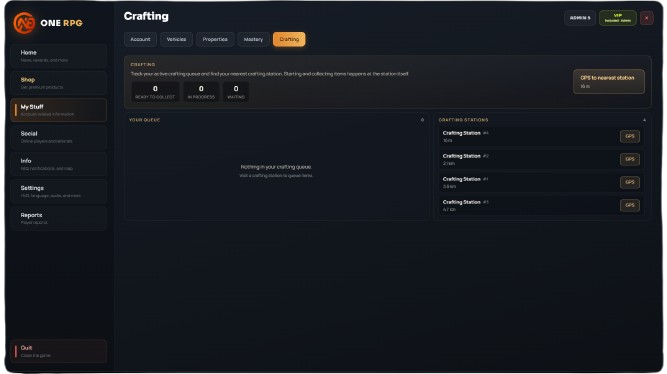
Main Dashboard Options
- Crafting Status: At the top right of the dashboard, you can monitor your global production status via three trackers:
- READY TO COLLECT: Completed items waiting to be picked up from a station.
- IN PROGRESS: Items currently undergoing the manufacturing process.
- WAITING: Items placed in the scheduling queue.
- Your Queue: The central area displays a detailed list of items sent to manufacturing. If you have no active production running, the panel shows the "Nothing crafting" status message alongside the note "Start crafting at a crafting table.".
- Crafting Stations: On the right column, you will find the complete registry of all active crafting nodes on the map, sorted by proximity to your current position (ex
#4 Crafting Station - 4 m NEAREST). - GPS Navigation: You can click the
GPSbutton located next to any listed station to instantly set a waypoint path directly on your minimap to that specific location.
Physical Interaction with the Crafting Station
Once you arrive at the coordinates designated by your GPS tracker, you will locate a specialized workbench setup:
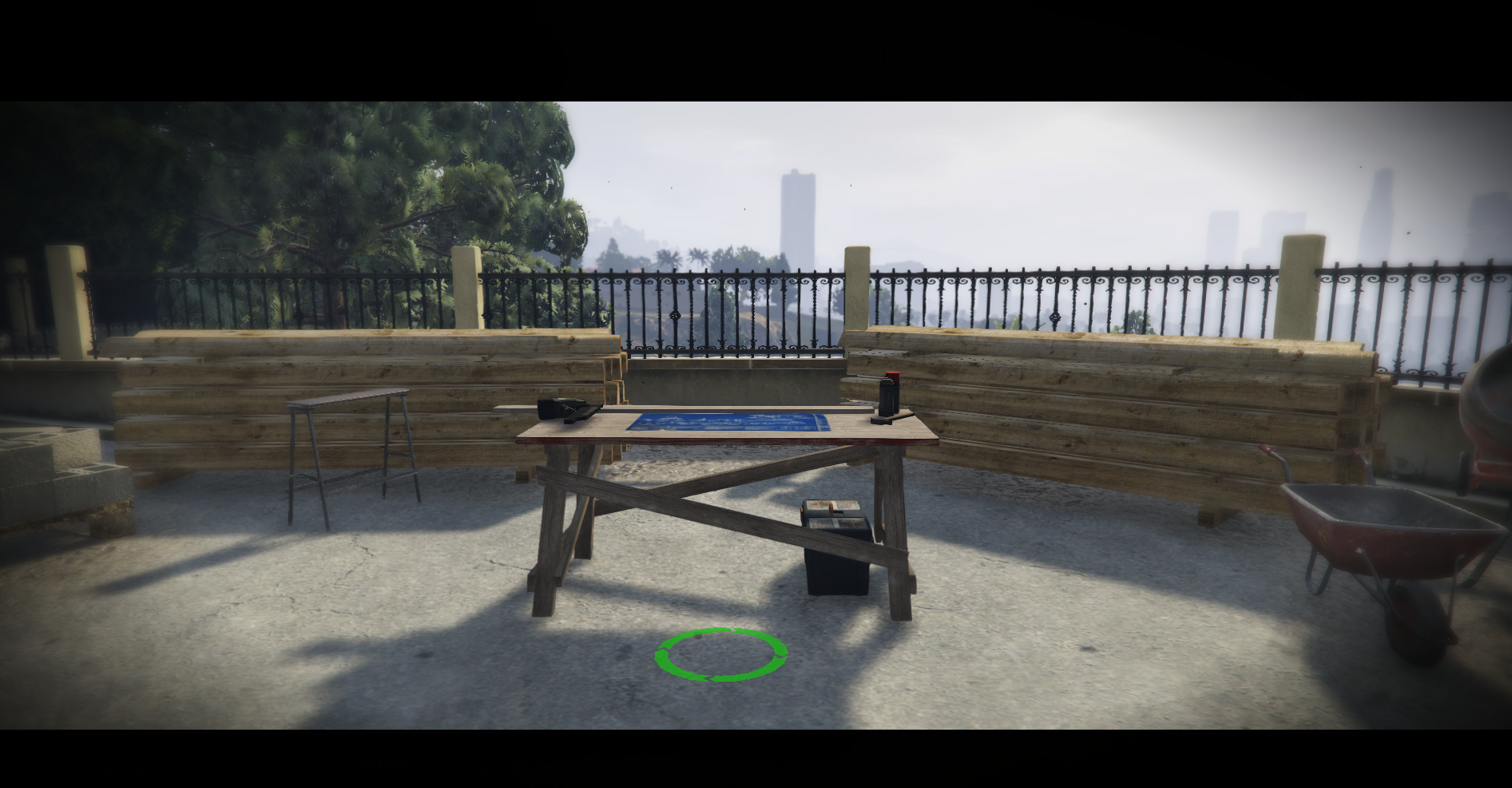
To access the deployment production matrix, you must step inside the green circle at the base of the workbench and press the E key.
Starting and Collection Rules
While you can easily monitor your queue and map out locations from anywhere by using the /crafting shortcut command or menu tabs, physically starting a crafting recipe and collecting finished assets can only be executed on-site by interacting directly with the workbench using the E key.
Production Interface (Station Menu)
After pressing the E key inside the green boundary circle, your display will render the main manufacturing interface:
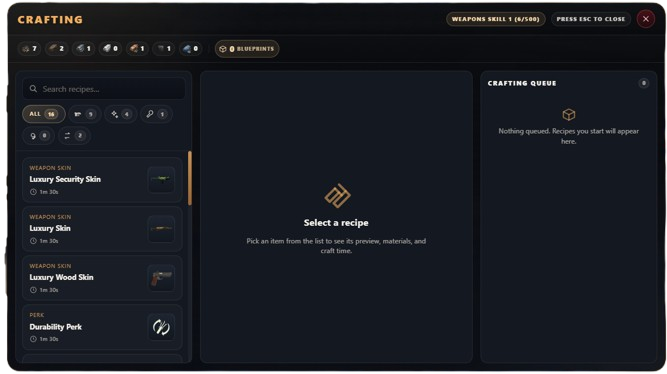
- Material Inventory Bar (Top Row): Displays a live breakdown of the raw components currently stored inside your inventory backpack (ex iron, wood, components). Hovering your cursor over any item asset icon reveals a tooltip detailing which civilian job or world activity rewards that specific resource.
- Blueprints & Skill Management: Next to your gold balance (
G) and the+ Buymodule, the interface tracks your blueprint counts via the0 BLUEPRINTSbutton, along with a circularWEAPONS SKILLrank tracker in the top-right corner. - Recipe Catalog (Left Column): Allows you to filter and search recipes using the Search recipes... bar or the specific category icons (All, Weapons, Weapon Skins, Perks, Tools, etc.). Each item index lists its item type, illustration, and production time (ex 1m 30s for a weapon skin, 30s for a Lockpick).
- Notification Subfloor: The bottom layout bar contains the
In crafting 0session counter and the tracking area where initialized recipes appear: "Nothing queued. Recipes you start appear here.".
Restrictions and Locked Recipes
If your global combat weapons level does not meet the necessary requirements, advanced industrial recipes will be locked by the system:
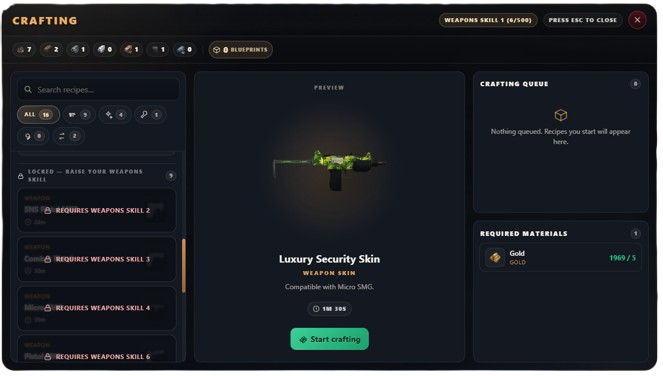
- Lock Header: Restricted blueprints are grouped under the specific structural divider named
LOCKED — RAISE YOUR WEAPONS SKILL. - Individual items within this directory display a red button with a lock icon indicating the precise requirement (ex SNS Pistol MK2 demands
SKILL 2, Combat Pistol demandsSKILL 3, Micro SMG demandsSKILL 4, etc.).
Selected Recipe & Assembly Example
When selecting an available, valid recipe from the left catalog, the center preview window and the right status modules update automatically with production specifications:
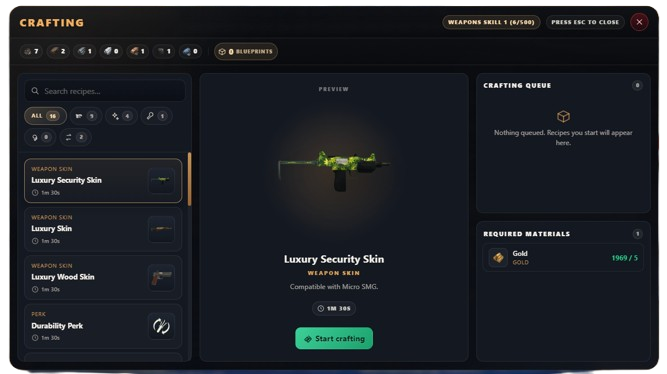
- Details and Compatibility (Center): For your active choice (ex Luxury Security Skin), the system renders a 3D asset preview, the item type tag, weapon attachment limits (Compatible with Micro SMG.), and the exact time counter (1m 30s). A green
✓ MATERIALS COMPLETEbadge confirms you meet the requirements. - Required Materials (Right Column): Displays the exact manifest checklist of needed materials against your inventory balance (ex holding 1559 units of Gold out of 5 required:
1559/5). A green progress bar confirms you satisfy the assembly cost. - Launching Assembly: If all components check out, click the large green
Start craftingaction button in the center pane to send the item to the assembly queue.
Exiting the Interface
You can close out the workstation menu canvas at any time by pressing your default ESC key or by clicking the X button located in the top-right corner.